
Installation
Introduction
The TeamsLink CRM Connect software is supplied as an Internet download. It is a self-contained installer that contains the files needed to install a copy of TeamsLink CRM Connect.
Before you start
Before you start, please check you have the following:
- A suitable computer for installation of the client software (please check minimum requirements)
- A valid Access Code and user login credentials for TeamsLink CRM Connect supplied by your Service Provider
Access Code
After completing the software installation process and depending upon the software configuration, TeamsLink CRM Connect may present the Access Code input window on first launch. A valid access code, supplied by your service provider, is required to proceed to user login. The Access Code is only required on first launch of the TeamsLink CRM Connect client and may have been entered during installation, in which case this window will not appear and user Login will display.
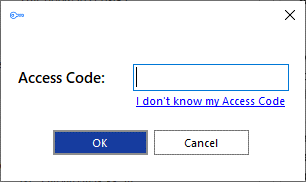
A shortcut is also placed in the Windows Start Menu program list to return to this step, if required.

Mass Deployment
TeamsLink CRM Connect can be installed to the user desktop by silent mode using the command format: IntegratorInstaller-4.2.0.2050.exe /quiet
After silent installation, the Setup Access Code shortcut is created but TeamsLink CRM Connect will not automatically start up.
 Report this page